What does your child need a phone for?
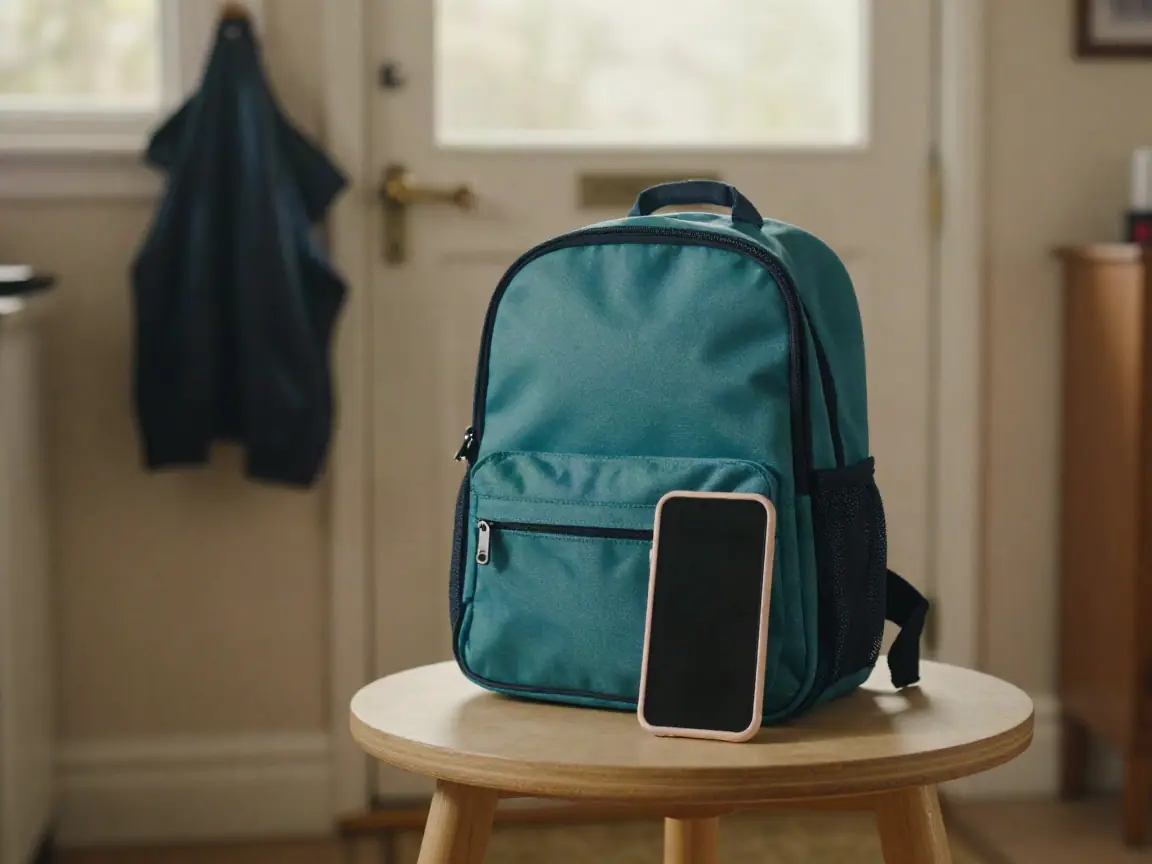
Start with the reason. A child who needs to call you on the walk home from school has very different needs from one who wants to join class group chats or use apps set by school.
Talk it through with your child. Ask what they want to use the phone for and what their friends have. You don't have to match what everyone else has, but knowing helps you plan the conversation.
Is there a right age for a first phone?
There isn't a set age. Many UK families buy a first phone around the move to secondary school, when children start travelling more on their own. Others wait longer, and some start earlier for practical reasons.
Think about your child's maturity, how well they stick to rules at home and how they cope when things go wrong. It also helps to talk to other parents in your child's class. If several families agree to wait, children feel less left out.
Basic phone or smartphone?
Basic phones
A basic phone makes calls and sends texts. It's cheap, the battery lasts for days and it's not a big loss if it gets broken or lost. It avoids most worries about apps, social media and late-night scrolling. The downside is that it can't run school apps or messaging apps such as WhatsApp.
Smartphones
A smartphone gives your child apps, the internet, maps and a camera. It also brings more to manage: screen time, content, contact with strangers and spending in apps. With the right controls in place from day one, it can still be a sensible choice.
A middle route
Some families start with a basic phone and move to a smartphone after a year or so, once their child has shown they can stick to the rules. Others give a smartphone with tight controls at first and relax them gradually.
| Basic phone | Smartphone | |
|---|---|---|
| Calls and texts | Yes | Yes |
| Apps and internet | Very limited or none | Full access, with controls |
| Cost | Low | Higher, and repairs cost more |
| Battery life | Several days | Usually a day |
| Parental controls | Rarely needed | Essential |
New phone or hand-me-down?
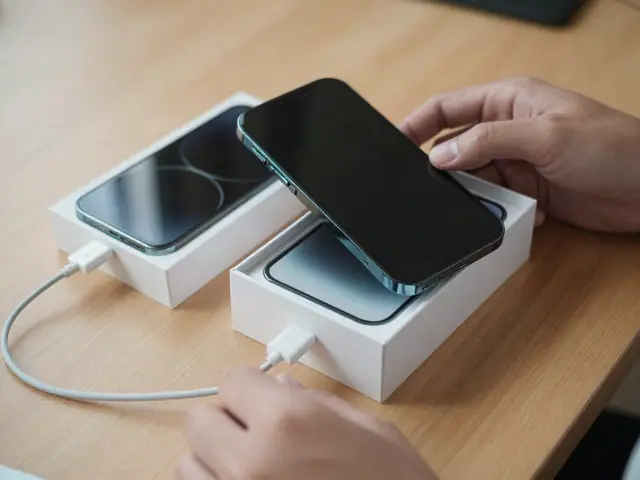
A hand-me-down saves money, and many children are happy with one. Before passing it on, check that it still gets security updates and that the battery will last a school day. Reset it fully, sign it out of your accounts and then set it up as your child's own phone so that parental controls work properly.
If you're buying new, a mid-range model is usually plenty. Expensive phones are more tempting to thieves and cost more to repair. Whatever you choose, a sturdy case and screen protector are worth the small extra cost. Phone insurance is rarely worth it for a cheap phone, but it can make sense for a pricier one. Check whether your home insurance already covers it.
How to choose a plan with sensible limits
Spending caps
Mobile providers must let you set a cap on your bill. Set it at or close to the plan price so there are no surprises.
Blocking extra charges
Ask your network to block premium-rate numbers and stop third-party purchases being added to the bill. This prevents unexpected costs from games, subscriptions and competitions.
Content filters
Most UK networks apply an adult content filter by default, and only someone who proves they're over 18 can remove it. Check that it's switched on for your child's line.
How much data?
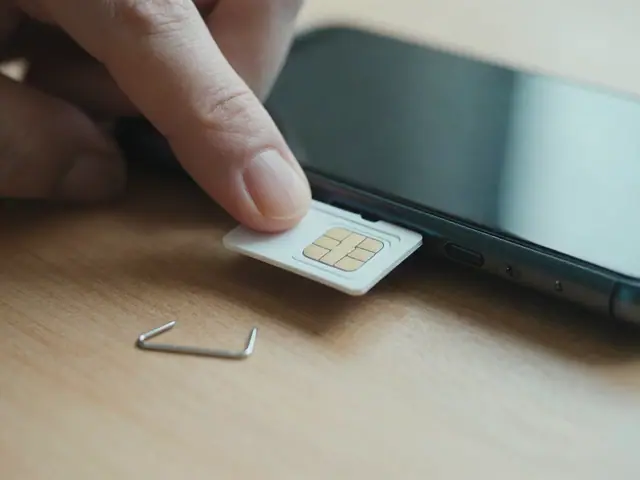
Children spend much of the day on Wi-Fi at home and at school, so a modest allowance is often enough. Pay-as-you-go or a low-cost SIM-only plan keeps things simple while you find out how much they actually use.
Setting up parental controls before you hand it over
iPhone: Screen Time and Family Sharing
Set up Family Sharing from your own iPhone and add your child. Screen Time then lets you set downtime, daily app limits and content restrictions. Ask to Buy sends any purchase or download request to you for approval.
Android: Google Family Link
Create a Google account for your child through the Family Link app on your phone. You can then approve apps, set daily limits and a bedtime, and see where the phone is.
Settings inside apps
Many apps have their own minimum age, often 13, and their own privacy settings. WhatsApp's minimum age in the UK is 13. If your child uses YouTube, consider a supervised account or YouTube Kids. Check privacy settings so that only people your child knows can contact them.
Reviewing controls as they grow
Controls that suit an 11-year-old will feel too tight for a 15-year-old. Plan to review them every few months at first, then once a year. Loosening restrictions step by step, as your child shows they can handle more freedom, tends to work better than removing them all at once.
Should you track your child's location?
Location sharing gives many parents peace of mind, especially for journeys to school and clubs. It works best when your child knows about it and understands why you're using it. Tracking a child secretly tends to damage trust if they find out.
As your child gets older, agree when and how location sharing will be relaxed.
Agreeing family rules for phones
Controls help, but they work best alongside rules your child has helped to set. A short written agreement might cover:
- where phones are kept overnight (many families choose somewhere outside bedrooms)
- phone-free times, such as meals and homework
- which apps are allowed and when that will be reviewed
- what to do if they see something upsetting or someone makes them uncomfortable
Pick a date to review the rules together, perhaps on each birthday or at the start of each school year.
Your child should know they can come to you if something goes wrong online without automatically losing their phone. Children who fear losing it are less likely to ask for help when they need it.
More help with family phones
Once the phone is set up, go through the basic security settings together and show your child how to spot scam messages. If you're comparing handsets, our guide to buying a refurbished phone can help you spend less.